DeepStream
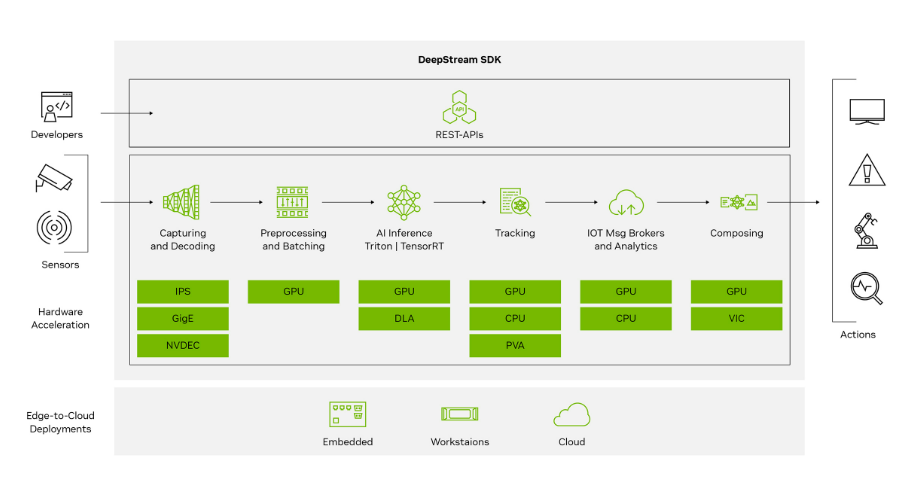
This guide provides instructions for installing and running the NVIDIA DeepStream SDK on Jetson Orin devices.DeepStream SDK is a comprehensive streaming analytics toolkit built on GStreamer, designed for real-time AI-based multi-sensor processing including video, audio, and image analytics. It enables GPU-accelerated video analysis pipelines and is highly optimized for the CUDA/NvMedia architecture on Jetson platforms.
1. Overview
- Real-time video analytics SDK provided by NVIDIA
- Optimized with TensorRT and CUDA for maximum performance
- Supports multi-stream AI inference and object tracking
- Input sources include RTSP, USB/CSI cameras, and local video files
- Built-in support for object detection, classification, and tracking
This guide covers:
- Installation methods (via
.debpackages and Docker) - Running sample DeepStream pipelines
- Integrating custom models (e.g. YOLO, SSD, etc.)
- Docker-based deployment using jetson-containers
- Troubleshooting and optimization tips
2. System Requirements
Hardware
| Model | Minimum Requirement |
|---|---|
| Device | Jetson Orin Nano / NX |
| Memory | ≥ 8GB |
| Storage | ≥ 10GB |
Software
- JetPack 6.1 GA or later (L4T ≥ R36.4)
- Ubuntu 20.04 / 22.04
- CUDA、TensorRT and cuDNN(included with JetPack 中)
- Docker(optional, for containerized deployment)
3. Installation DeepStream
-
glib Migration: To migrate to a newer version of glib (e.g., 2.76.6), please follow these steps:
sudo pip3 install meson
sudo pip3 install ninja
Build and Install glib:
git clone https://github.com/GNOME/glib.git
cd glib
git checkout <glib-version-branch>
# e.g. 2.76.6
meson build --prefix=/usr
ninja -C build/
cd build/
sudo ninja install
Confirm GLib Version:
pkg-config --modversion glib-2.0 -
Install Required Libraries:
sudo apt update
sudo apt install -y \
  libssl1.1 \
  libgstreamer1.0-0 \
  gstreamer1.0-tools \
  gstreamer1.0-plugins-good \
  gstreamer1.0-plugins-bad \
  gstreamer1.0-plugins-ugly \
  gstreamer1.0-libav \
  libgstrtspserver-1.0-0 \
  libjansson4 \
libyaml-cpp-dev -
Install librdkafka (for Kafka Protocol Adapter)
- Clone the librdkafka repository from GitHub:
git clone https://github.com/confluentinc/librdkafka.git
- Configure and build the library:
cd librdkafka
git checkout tags/v2.2.0
./configure --enable-ssl
make
sudo make install
- Copy the compiled libraries to the DeepStream directory:
sudo mkdir -p /opt/nvidia/deepstream/deepstream/lib
sudo cp /usr/local/lib/librdkafka* /opt/nvidia/deepstream/deepstream/lib
sudo ldconfig
Method 1: Installation via SDK Manager
-
Download and install SDK Manager from NVIDIA’s official website .
-
Connect the Jetson Orin device via USB-C to PC.
-
Launch SDK Manager:running
sdkmanagerin the host and log in with your NVIDIA Developer account. -
Select hardware and JetPack version in SDK Manager.
-
Check DeepStream SDK in "Additional SDKs".
-
Follow on-screen instructions to complete installation.
Method 2: Using DeepStream Tar Package
-
Download the DeepStream SDK tar from the NVIDIA DeepStream Download Page(Example
deepstream_sdk_v7.1.0_jetson.tbz2) -
Extract and install:
sudo tar -xvf deepstream_sdk_v7.1.0_jetson.tbz2 -C /
cd /opt/nvidia/deepstream/deepstream-7.1
sudo ./install.sh
sudo ldconfig
Method 3: Using DeepStream Debian Package
-
Download the Debian Package from DeepStream Debian Download page(Example:
deepstream-7.1_7.1.0-1_arm64.deb) -
Install the package:
sudo apt-get install ./deepstream-7.1_7.1.0-1_arm64.deb
Method 4: Using DeepStream Docker
-
Install Docker and NVIDIA Container Toolkit.
-
Pull DeepStream container:
docker pull nvcr.io/nvidia/deepstream-l4t:6.1-samples
- Run DeepStream container:
docker run -it --rm --runtime=nvidia \
  -v /tmp/.X11-unix:/tmp/.X11-unix \
  -e DISPLAY=$DISPLAY \
  nvcr.io/nvidia/deepstream-l4t:6.1-samples
(Optional) Use the jetson-containers community projec jetson-containers:
jetson-containers run dusty-nv/deepstream
Verification
Check Version:
deepstream-app --version-all
Expected Output:
 deepstream-app version 7.1.0
 DeepStreamSDK 7.1.0
 CUDA Driver Version: 12.6
 CUDA Runtime Version: 12.6
 TensorRT Version: 10.3
 cuDNN Version: 9.0
 libNVWarp360 Version: 2.0.1d3
4. Running Examples
Step 1: Run the Default Reference App
- Navigate to the built-in sample configuration directory:
cd /opt/nvidia/deepstream/deepstream-7.1/samples/configs/deepstream-app
- Run the reference application:
# deepstream-app -c <path_to_config_file>
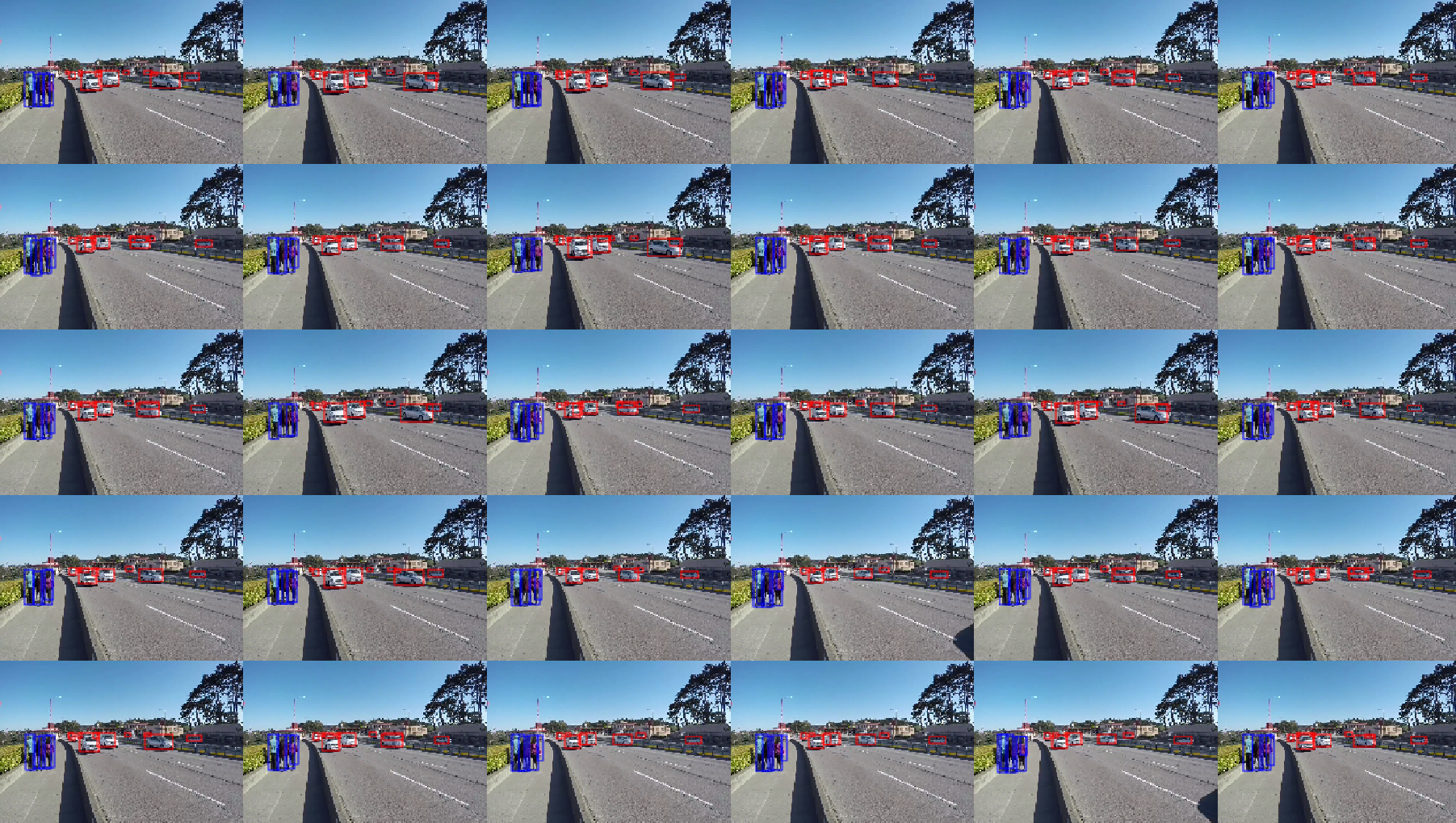
deepstream-app -c source30_1080p_dec_infer-resnet_tiled_display_int8.txt
This command launches a tiled display showing real-time object detection results from multiple video streams:
Step 2: Use USB or CSI Camera
Modify the[source0]section of the configuration file to enable camera input:
[source0]
enable=1
type=1
camera-width=1280
camera-height=720
camera-fps-n=30
Run the app with your updated config::
deepstream-app -c <your_camera_config>.txt
🎥 For DeepStream configuration:USB camera uses
type=1,CSI camera uses GStreamer source elementnvarguscamerasrc
Step 3:Use RTSP Stream as Input
To connect to an IP camera stream, update the source block:
[source0]
enable=1
type=4
uri=rtsp://<your-camera-stream>
Step 4: Run Sample Application
Navigate to the sample app directory:
cd /opt/nvidia/deepstream/deepstream-7.1/sources/apps/sample_apps/deepstream-test1
Compile the source code:
sudo make CUDA_VER=12.6
Run the application:
./deepstream-test1-app dstest1_config.yml
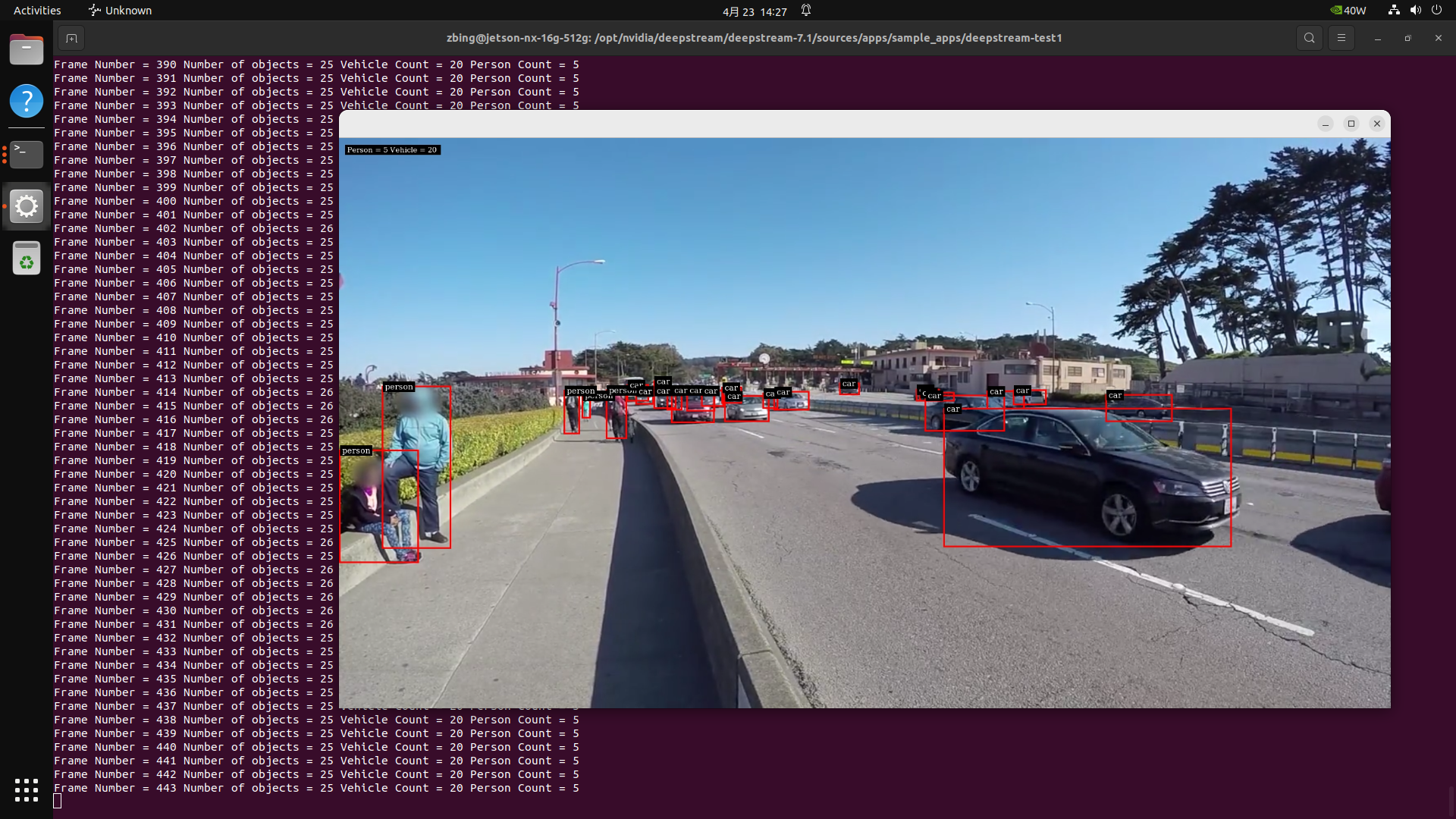
For more sample source code, refer to: /opt/nvidia/deepstream/deepstream/sources
5. Integrating a Custom Model
DeepStream supports custom model integration using TensorRT or ONNX formats.
Step 1: Convert the Model to TensorRT Engine
Usetrtexec or tao-converter to convert your ONNX model:
trtexec --onnx=model.onnx --saveEngine=model.engine
Step 2: Update DeepStream Configuration File
Edit the model configuration section:
[primary-gie]
enable=1
model-engine-file=model.engine
network-type=0
For more DeepStream + TAO Toolkit integration examples, refer to: https://github.com/NVIDIA-AI-IOT/deepstream_tao_apps
6. Additional Examples
7. Troubleshooting
| Issue | Solution |
|---|---|
| No image display in Docker | Mount the X11 socket and set the DISPLAY environment variable |
| Low frame rate | Use INT8 engine format or reduce input video resolution |
| USB camera not detected | Run v4l2-ctl --list-devices to verify the device |
| GStreamer errors | Ensure all required plugins are installed; reflash JetPack if necessary |
| RTSP stream lag or frame drops | Set drop-frame-interval=0 or latency=200 |
8. Appendix
Key Paths
| Purpose | Path |
|---|---|
| Sample config files | /opt/nvidia/deepstream/deepstream/samples/configs/ |
| Model engine files | /opt/nvidia/deepstream/deepstream/models/ |
| Log directory | /opt/nvidia/deepstream/logs/ |
| DeepStream CLI tool | /usr/bin/deepstream-app |